Live subtitles · over any app

Real-time translation for
any video
or livestream you watch.

Hono Translate listens to the audio playing in any app on your iPhone, translates it as it is spoken, and floats the subtitles on top of your screen — so you keep watching, in a language you actually read.

  • Free to try
  • iOS 26 or later
  • On-device translation
  • No account, no ads

Works over anything that plays sound

  • Streaming
  • Live streams
  • Podcasts
  • Browsers
  • Lectures
  • Meetings

The gap

What you want to watch
probably doesn't come with subtitles.

Subtitles exist for what is popular and on demand. Everything else — the live, the raw, the audio-only — you are on your own. That is the whole reason this app exists.

No subtitles in your language on iPhone? What to try, in order
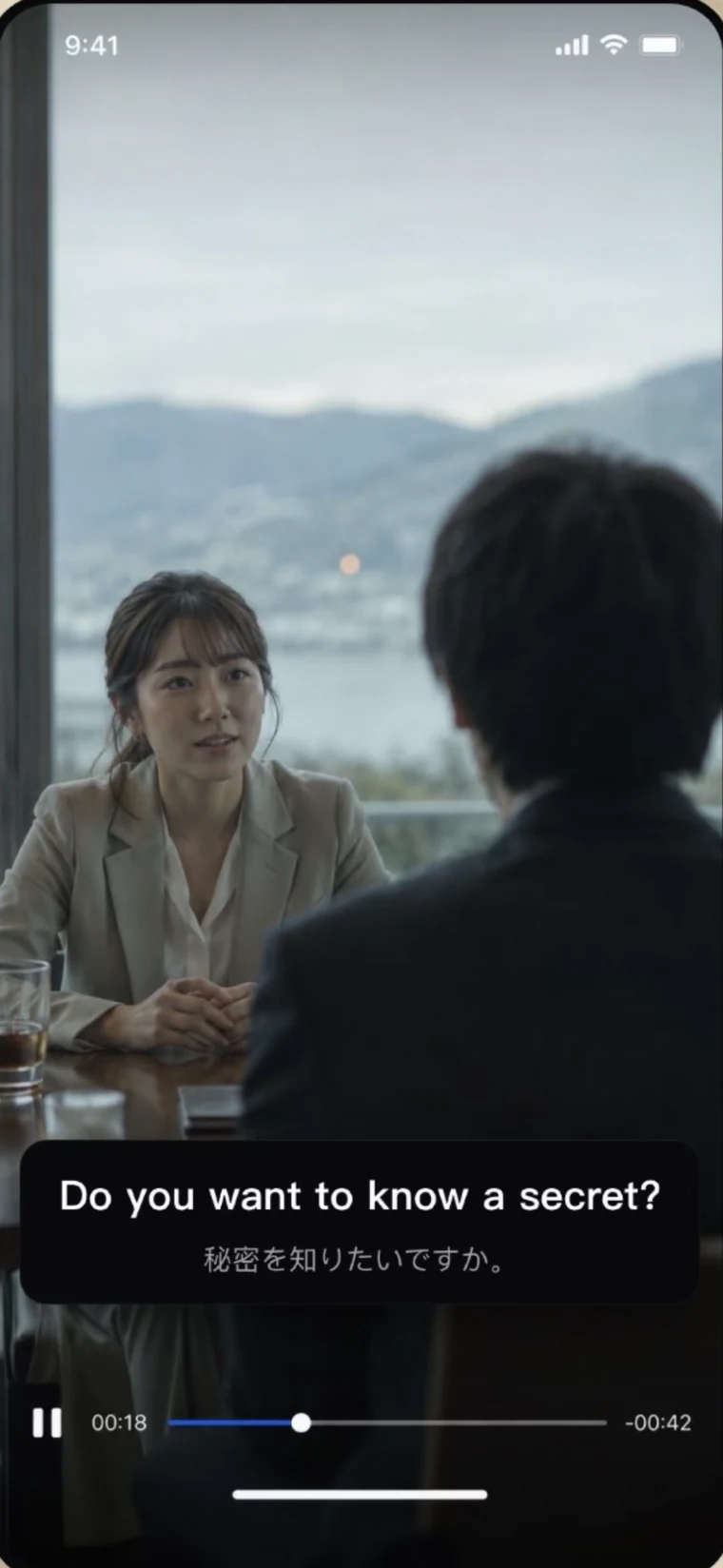
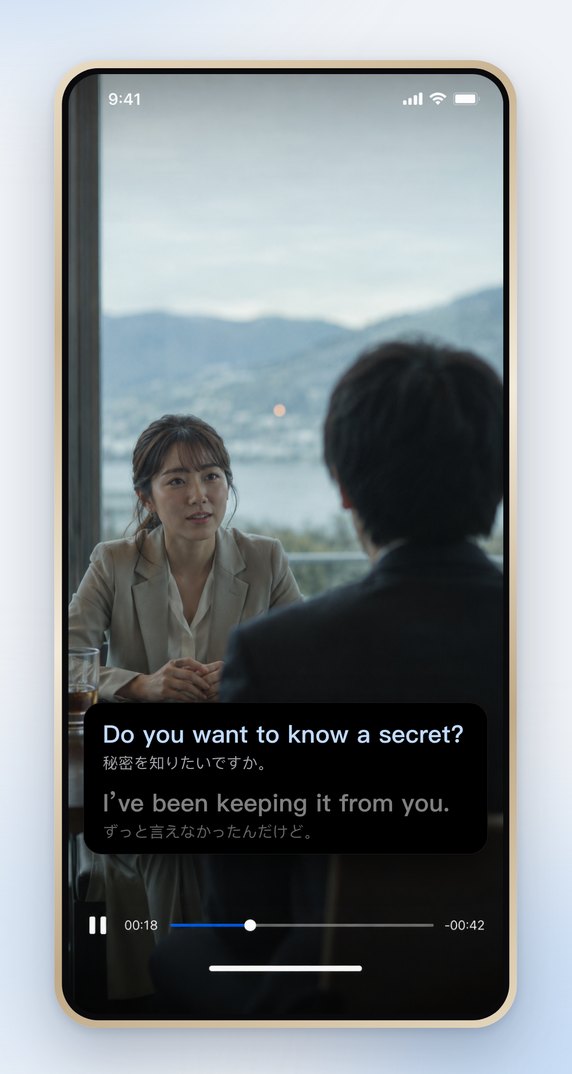
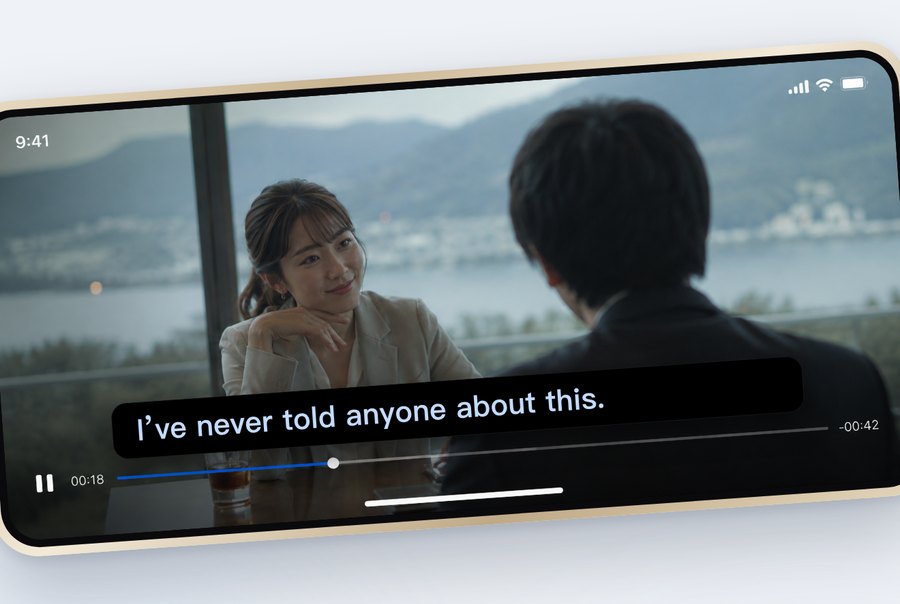
A Japanese drama playing with no subtitles at all.
A drama with no subtitles — and no way to get them.

Live streams

A live stream happens as it happens. No fansub group can prepare a translation in advance, and by the time one is posted, the moment is gone. Idol streams, sports commentary, keynotes, live shopping — none of it can ever be pre-subtitled.

RAW episodes & imports

Japanese, Korean and Chinese drama and anime straight from the source, imported films, foreign-language YouTube. Often audio-only, and when subtitles do exist they are in a language you do not read.

Sound with no picture

Podcasts, audiobooks, interviews, lectures, online meetings and briefings. There is no video to subtitle — but there is audio, and audio is all it ever needed.

How it works

Three taps, then you're all set.

No setup, no accounts, no subtitle files to hunt down. Here is the whole flow, with nothing cut out.

  1. 1

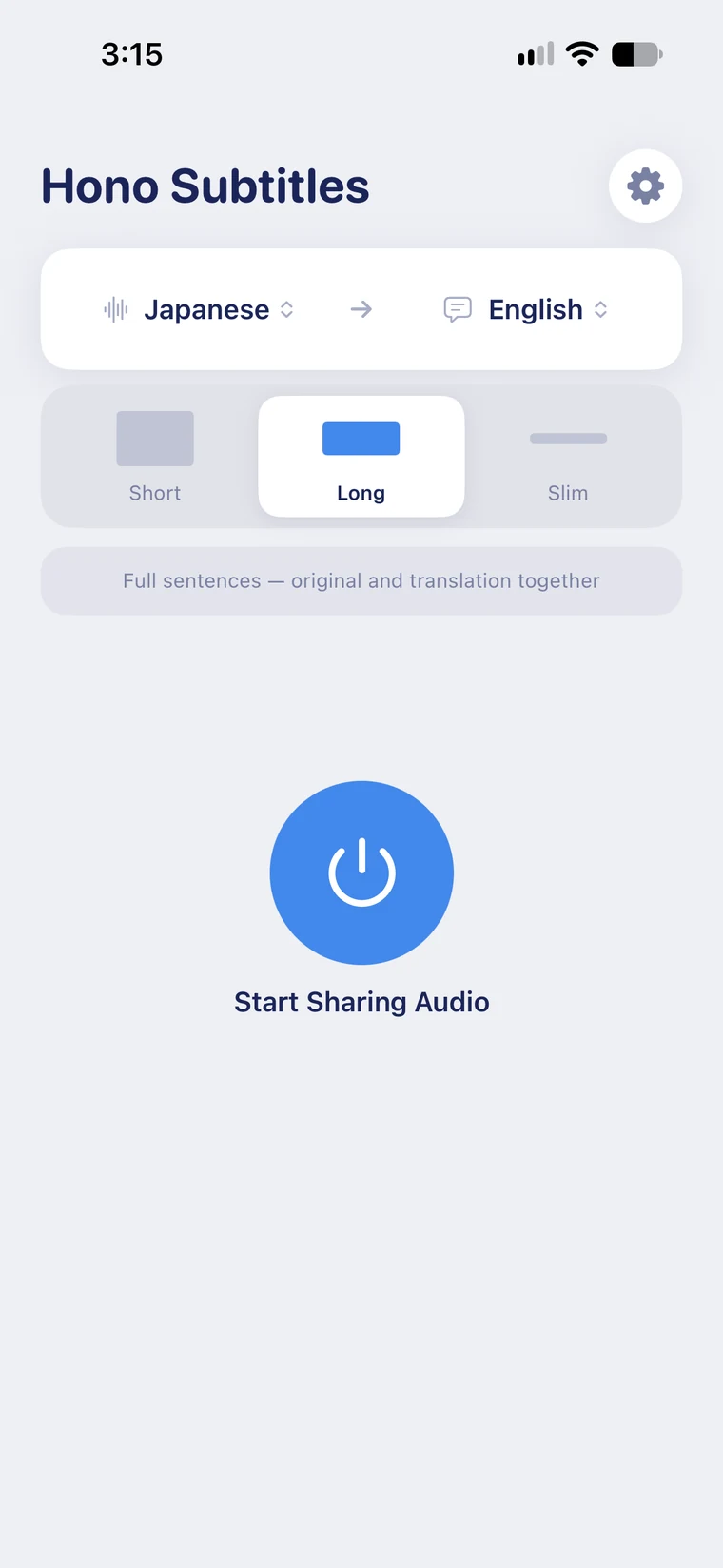
    Choose your languages

    The left menu is what is being spoken, the right menu is what you want to read. If a language pack still needs downloading, the app tells you before you start rather than leaving you with a silent window.

    The Hono Translate home screen: Japanese to English selected, Bilingual display, a preview of the subtitle card and a large blue Start translating sound button.
  2. 2

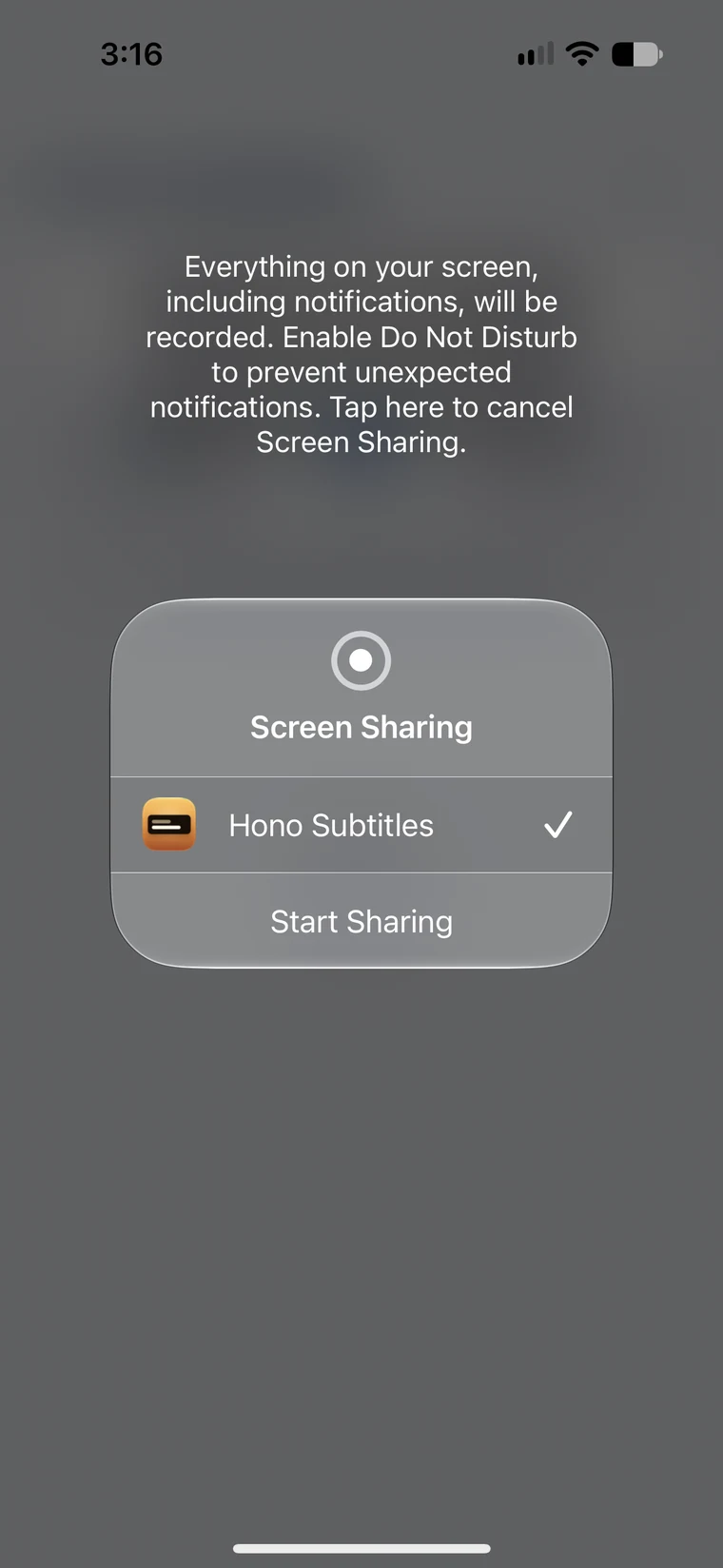
    Tap “Start translating sound”

    iOS asks you to confirm — tap Start Sharing in the system sheet, then tap the empty space below it, because iOS keeps the sheet open until you do. That sheet is not a warning: it is the only way any iPhone app can receive another app's audio, and it is the one permission the subtitles need.

    The iOS Screen Sharing sheet with Hono Translate selected and a Start Sharing button.
  3. 3

    Go back to your video

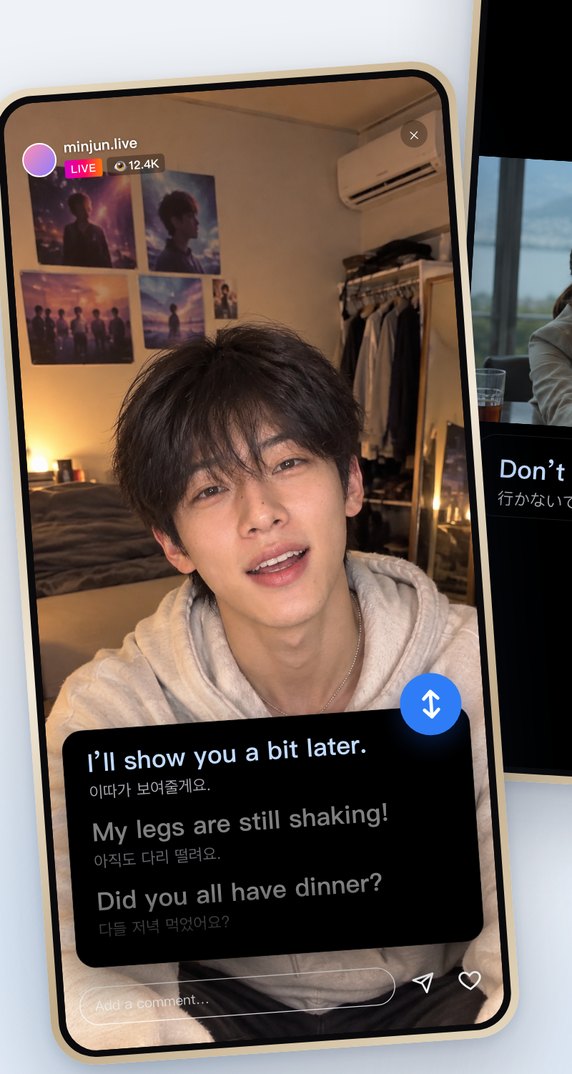
    Once the sheet closes, the subtitle window floats up on its own and your iPhone returns to the Home Screen. Open your video again and the window keeps pace with the dialogue. Drag it, resize it, switch apps — it stays on top and keeps updating.

    A Korean idol's livestream with a floating subtitle reading “Learned a new dance today — my legs are still shaking.” and the original Korean line underneath.

Over any app

If it plays sound,
it gets subtitles.

There is no list of supported apps, because there is nothing to support one app at a time. Whatever is playing on the phone — a streaming app, a browser tab, a podcast, a lecture recording — the subtitles land on top of it.

  • Streaming
  • Live streams
  • Podcasts
  • Social video
  • Lectures
  • Raw episodes
How to translate a livestream you are watching
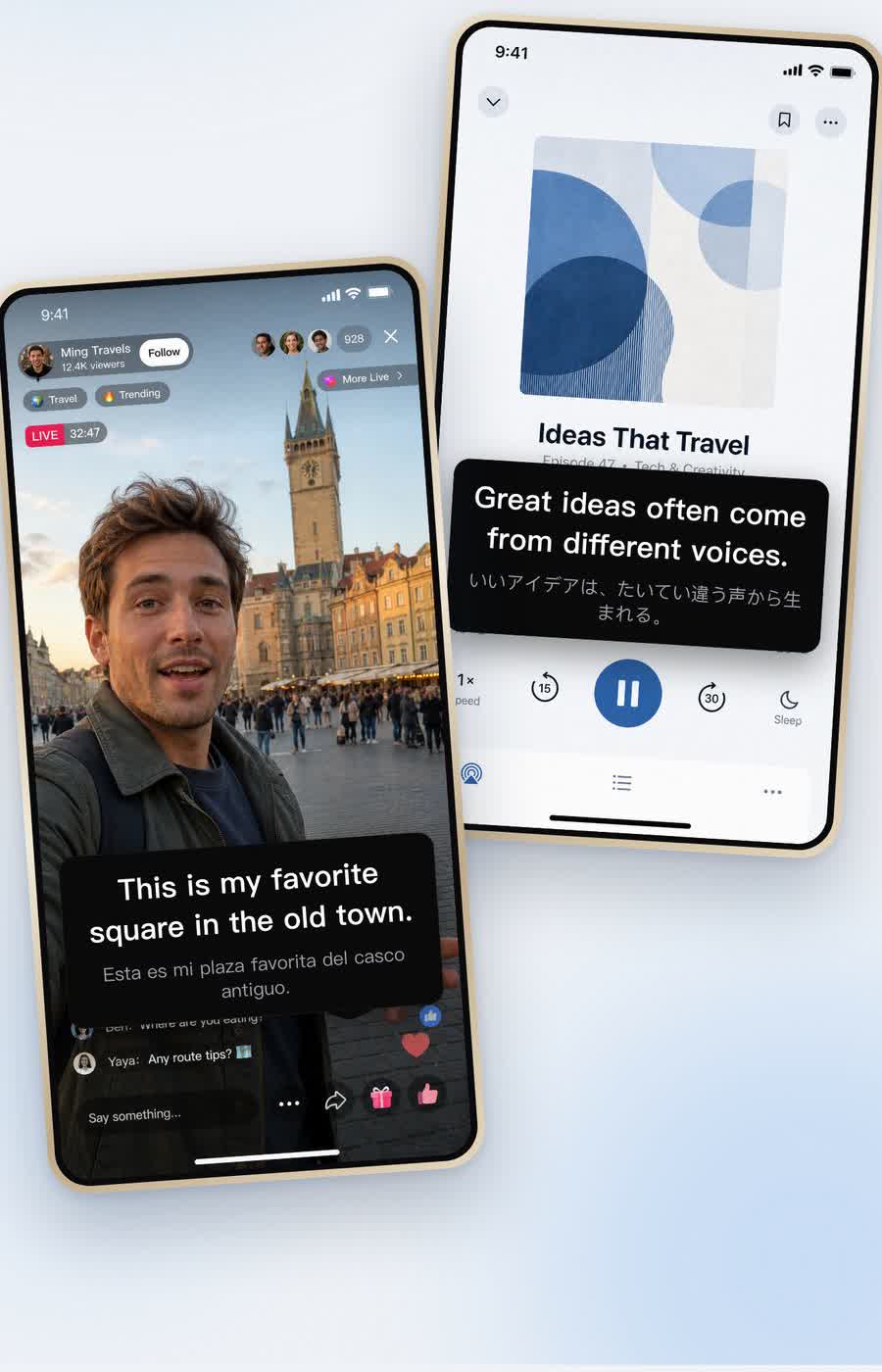
Two iPhones side by side: a Korean idol's livestream in one and a Japanese short video in the other, both showing translated subtitles.

Tested apps

Which apps work with the floating subtitles?

Any app that plays sound, because the subtitles come from the audio rather than from a connection to the app. These are the ones checked on a real iPhone:

  • YouTube

    Videos and live streams, even with no captions; turn off YouTube's own picture-in-picture if it takes the subtitle window's place.

  • TikTok LIVE

    What the host says, while you keep watching and commenting; nothing is sent to TikTok or the host.

  • Instagram Live

    Lives, Reels and Stories all work the same way.

  • Twitch

    In the Twitch app or in Safari, whether or not the streamer sends captions.

  • Weverse

    With or without Digital Membership, for lives in Korean, Japanese, English or Chinese; idol names can come out misspelled.

  • hololive and other VTubers

    Any channel on YouTube, members-only streams included if you can watch them.

  • TVer, ABEMA, SHOWROOM

    Live and catch-up; whether a programme plays where you are is up to the app.

  • Bilibili, Douyin

    Chinese videos and lives, translated into the language you read.

  • Safari, Chrome

    Video on any website, in the browser.

A few streaming apps block audio capture for protected video; there, no subtitles appear.

Security & privacy

Your audio never leaves your phone.

Both halves of the pipeline — speech recognition and translation — run locally on your iPhone using Apple's on-device frameworks. Your audio and subtitles are never uploaded.

Recording only when you ask

Nothing is recorded unless you start a clip yourself, and clips go only to your Photos. The app keeps no history of what you watched.

No account, no tracking

No sign-in, no email, no profile. Nothing reports what you watched, and nothing is used for advertising or tracking.

Offline after setup

Language models download once, then everything works with no connection at all — on a plane, in a tunnel, anywhere.

Screen sharing, explained

iOS has no API that simply hands one app another app's audio; screen sharing is the only route there is. The app turns that audio into subtitles on the device and discards it — the audio and the subtitles never leave your iPhone.

Free to try

See it work first.
Decide after.

Free to download and free to try. Open it, start a session, and the subtitles appear over whatever is already playing — your video, your language, your accent. You get enough goes to make up your mind before paying anything, and paying is what removes the limit for good: unlimited subtitles from then on.

No payment up front

No card, no billing details, nothing to enter before you have seen the app do its job. Paying comes later, and only if you want to keep going.

No account either

No sign-up, no email address, no profile. You hand over nothing to find out whether this app suits you.

Tested on what you actually watch

A demo on someone else’s clip proves nothing. Run it on the show you are behind on, in the app you watch it in — that is the only test worth trusting.

FAQ

Questions, answered

Doesn't iPhone already translate videos on its own?

Not speech in another language. Live Captions writes down what is said without translating it. Live Translation works in Phone, FaceTime and Messages, not over a video. Generated subtitles in iOS 27 are English only, and their translated version needs a video that already has English subtitles. Hono Translate covers the case none of them do: translating what is being said, in any app, as it is said.

Can an iPhone app hear the sound another app is playing? Do I need a second phone?

Yes, and one iPhone is enough. Through screen sharing — the iOS sheet you confirm when you start — iOS hands the sound that is playing to the app you pick. Hono Translate takes that audio from iOS, not from the microphone, so headphones are fine, and its subtitles float in a Picture-in-Picture window over TikTok, YouTube or any other app.

What do I need to run it?

An iPhone on iOS 26 or later. The first time you use a language, the app downloads that language's recognition and translation models. After that it works fully offline.

Which iPhones can use it?

Any iPhone running iOS 26 or later. To check yours, open Settings › General › Software Update: it shows which iOS version you have and, if you are not on iOS 26 yet, whether your iPhone can update to it.

Why does it ask to share my screen?

Because iOS has no API that simply hands one app another app's audio. The screen-sharing mechanism is the only route that exists, so the system sheet appears and you tap Start Sharing. Hono Translate uses the audio stream only, and nothing leaves your iPhone. The only time anything is saved is when you record a clip yourself, and it goes straight to your Photos.

Does it work offline?

Yes, once a language pair has been downloaded. Recognition and translation both run on the device, so no connection is needed while you watch.

Which languages are supported?

The list is read from iOS at runtime rather than hardcoded, so it tracks what your particular iPhone can do. On the listening side it is the overlap between Apple's on-device speech models and its translation models — English, Japanese, Korean, Chinese in both scripts, Cantonese, Spanish, French, German, Portuguese, Italian, Hindi, Russian, Turkish, Indonesian, Thai and Vietnamese — some of them through Apple's on-device dictation model, so each sentence takes a few seconds longer to appear. On the reading side, any language Apple's translator handles. Models download the first time you pick a language, so a fresh phone shows fewer until it has fetched them.

The subtitle window disappeared. Is something broken?

No. iOS allows only one Picture in Picture window at a time, so if another app opens its own, yours is taken over. The audio share keeps running and the app's button becomes Open Subtitle Window. One tap brings it back.

No subtitles are appearing. What should I check?

Look at the status line above the big button on the main screen — it names whichever stage is pending, whether that is a model downloading, a language pack not yet installed, or audio not being shared. No line there means there is nothing for you to do. Also make sure the video is not muted, and check for the red recording indicator in the status bar, which means audio really is being shared. Recognition works from sound, so heavy background music or several people talking at once will noticeably reduce accuracy.

Do I have to pay to find out whether it works?

No. Free to download and free to try — you get enough goes to make up your mind before paying anything, on your own video and in your own language. There is no card to enter and no account to create. Paying is what removes the limit for good: unlimited subtitles from then on, bought through the App Store.

Is the app free?

Free to download and free to try. You get enough goes to make up your mind before paying anything. Paying removes the limit for good — unlimited subtitles from then on — as a monthly subscription, a yearly one, or a one-time lifetime unlock; current prices are shown in the App Store in your own currency.

Hono Translate app icon

Stop guessing.
Start understanding.

Free to start. Works right away. No account, no upload, nothing to set up.

Download on theApp Store